10 secret Apple CarPlay features that will all make your life slightly better
Apple CarPlay is so feature-packed that there are some handy functions even experts might not know about...

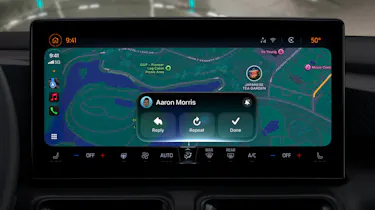
The popularity of Apple CarPlay has surged since launching in 2014. If you have an iPhone device and a CarPlay-compatible car, it’s highly likely you use the software, but whether or not you’re getting the full potential of the system is another matter.
With improvements rolling out all the time, most recently with the release of the iPhone’s iOS 27 operating system, CarPlay has become so packed with features that it’s easy to miss some. And a lot of them are potentially very useful indeed.
1. Call your destination
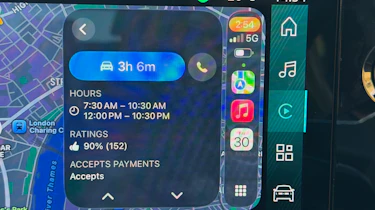
If you want to call the business you’re about to navigate to, it’s simply a case of pressing the phone icon that appears by the destination. Perhaps it’s a restaurant, and you’re checking table availability, or it’s a shop, and you want to check the stock of something - whatever the need for giving them a buzz, this is a useful and underrated feature.
2. Parking location
We’ve all forgotten where we’ve parked the car before, but with CarPlay, it won’t matter. If you have ‘location services’ and ‘significant locations’ turned on in your phone’s privacy and security settings, there’s the option in both the Apple Maps and Google Maps settings to ‘Show Parked Location’. Your car’s location at the time the CarPlay connection ceased is marked on the map, making it easy to find your way back to the vehicle later on.
There’s a handy extension of this feature if you have an Apple Watch, as well. The Backtrack function in the device’s Compass app will leave a breadcrumb-style path for you to follow back to the parked car.
3. Switch on Dark mode permanently
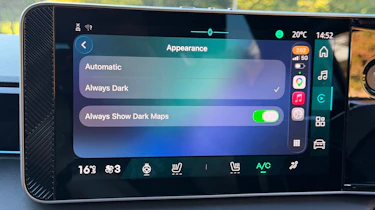
CarPlay is able to switch automatically to a Dark mode that won’t be too harsh for your eyes at night using the car’s ambient lighting sensor. If you prefer it in Dark mode permanently, it’s simply a case of opening the settings window on the CarPlay screen, then pressing Appearance, then selecting ‘Always Dark’.
4. Take a screenshot
If, for whatever reason, you’d like to take a screenshot of your CarPlay screen, you simply need to take a screenshot on your device (which you’ll obviously need a passenger to do if you’re driving). So long as CarPlay Screenshots is enabled in Settings>General>Screen Capture, a screen grab from both your device and the CarPlay screen will save to your gallery.
5. SharePlay
Here’s a feature that’ll either be a godsend on road trips or a cause for massive arguments, depending on how well your musical tastes align with those of other car occupants. Anyone wanting to take part will need an Apple Music subscription, an iPhone with iOS 17 or newer, and have Discoverable by Nearby Contacts turned on in Settings>Apps>Music.
When you start playing music on the system, anyone with a compatible device with the right settings will get a notification on their lock screen prompting them to connect. Thankfully, they can’t just go rogue and hijack your playlist - a tick icon needs to then be pressed on the infotainment screen to allow them to stream music.
It’s also possible to tap the SharePlay icon on the CarPlay screen to bring up a QR code which passengers can scan with their cameras to join the fun.
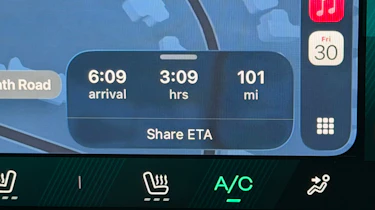
6. Share ETA
Rather than doing anything as old-fashioned as calling someone with an expected arrival time, you can easily share it through Maps by tapping ‘Share ETA’ on the route card. You’ll need to make sure the feature is turned on in Settings>Apps>Maps.
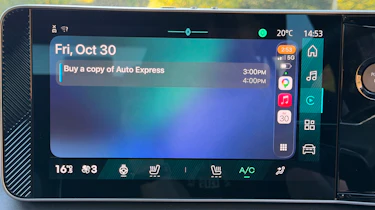
7. Calendar
To combat that sinking feeling of having forgotten something you should be doing, CarPlay has a calendar app which will show upcoming events, and where applicable, it’s possible to have the system give directions to whatever it is you might have forgotten about. If you prefer to keep your life organised with Google Calendar, that’s fine, even though it’s not compatible with CarPlay - you can simply set Apple Calendar to automatically pull in whatever’s on your Google Calendar.
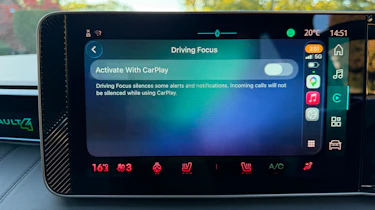
8. Driving Focus mode
Whether you don’t like distractions or simply want to switch off from the outside world for a bit, Driving Focus mode is worth a look. Activated in the settings menu, it mutes incoming messages but can automatically reply to let the sender know you’re driving, and not just being a bit rude. By replying with ‘urgent’, this can be overridden.
9. Video playback
It's a new feature for iOS 27, so this is one you might have missed. You can now play videos on your infotainment screen from supported apps, including YouTube and Netflix, via CarPlay. The car does, of course, need to be stationary for this to work. Video playback will switch to audio only the moment you set off.
10. Automations
Through the CarPlay section of your iPhone’s Shortcuts app, you can prompt numerous actions to occur when the device either connects or disconnects. It can speak a custom message, open a particular app, or play music. For the latter, you can choose from specific playlists, channels, and even songs. You can go even further if you have Apple Home-enabled devices. You could, for instance, programme a smart light to come on when your phone knows you’re near home.
Get even more from Auto Express, follow our channels...
• Google
• Reddit
• Whatsapp